Sales Quote Detail Description
This is part of the Sales Quote Add-on Module.
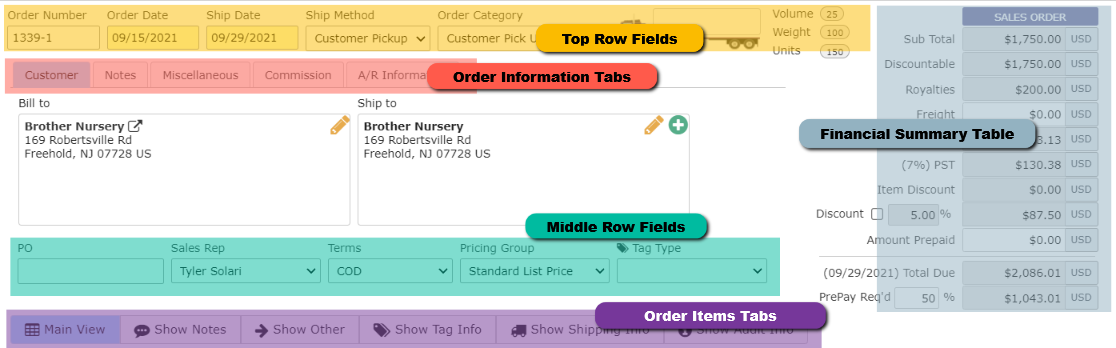
Top Row Fields
- Order Number: An eGrow Connect generated sales order number beginning with QO
- Quote Date: Date quote was created (editable)
- Date Wanted: Date items will be wanted (editable)
- Ship Method: Selected shipping method, options can be edited in system setup
- Order Category: Selected order category, options can be edited in system setup
- Truck Icon: Visual display of how much space the order will take up on a truck according to the [eGrow Connect load calculations]
Financial Summary Table
A financial summary of the entire order.
- Status: Select the status of the quote: Open, Waiting on Customer, Lost
- Sub total: Combined sell cost of all items on the quote
- Discountable: Combined cost of all the items on the quote which have ‘yes’ marked in the “Disc y/n” column.
- Royalties: Combined cost for all plant royalties
- Freight: Enter a dollar amount for the cost of shipping.
- Tax 1 and Tax 2: Tax percentages to be added to the total, [determined by the tax scheme.]
- Discount: If checked, the percentage entered in the % field will be applied to the amount in the “Discountable” field above.
- Item Discount: Combined discount amount for all itemized discounts, created in the “Disc %” column for each item on the quote
- Amount Prepaid: Amount the customer has prepaid, manually entered here to reflect a prepayment by the customer.
- Total Due: Total amount due with prepayment subtracted. The ship date is also the due date for the quote.
- Valid till date is the number of days past the Quote Date determined in System Setup > Company Preferences > Sales
Order Information Tabs
Bill to and Ship to: Addresses for billing and shipping, adjust default addresses in Customer module, click External and Internal notes that apply to the entire sales quote. Internal notes will not appear on printed sales order reports. Learn more about internal/external order notes and line item notes.
|
 symbol to edit, symbol to add additional Ship to address.
Middle Row Fields
Most of these fields will autofill with default information from the Customer module.
- PO: Purchase Order number, typically, supplied by the buyer.
- Sales Rep: Nursery employee that handled the sale
- Terms: Terms of the sale, [payment terms can be created/adjusted in System Setup]
- Pricing Group: Select a pricing group for the quote. [Learn more about how pricing groups work]
- Tag Type: Tag type from the options, [tag types can be created/adjusted in System Setup].
Order Items Tabs
A place to write notes about individual items on this order.
Customer tag information for SKU, UPC, or item price. Tip: You can use Export to Excel to send a blank spreadsheet to customers to fill out and return.
|